 Filename Checker manual
Filename Checker checks all filenames in a folder (and its subfolders, if you like) against a number of rules, for example the length or a number in brackets. It shows which names are not right, and it can rename them automatically. You can also replace a part of the names with your own text. You can download Filename Checker, and read how to install it, on the Filename Checker page.
1. The main window
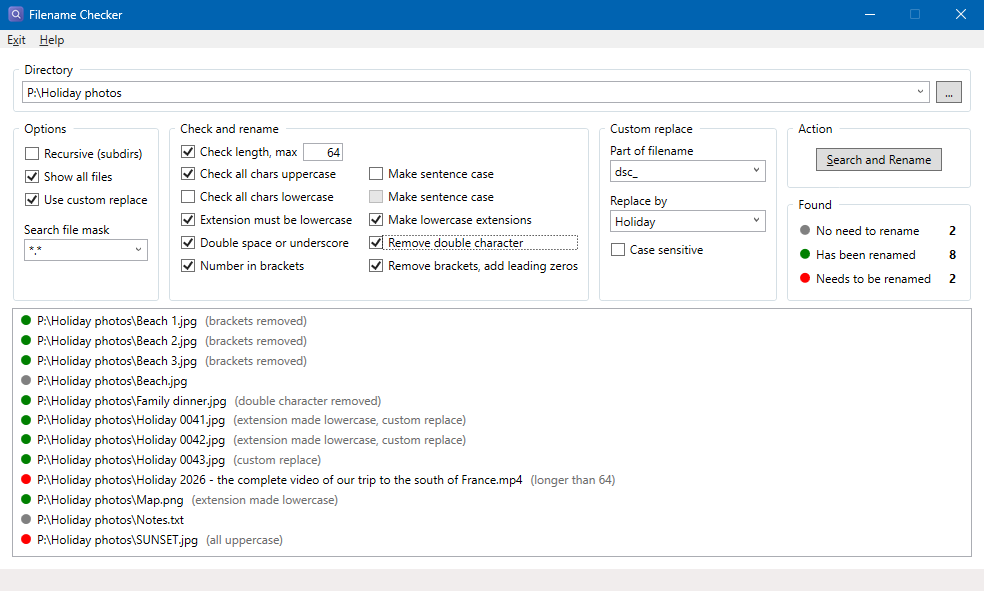
From top to bottom:
- Directory: the folder with the files to check.
- Options: subfolders, which files are listed, custom replace on or off, and the file mask.
- Check and rename: on the left the checks, on the right whether Filename Checker repairs the name automatically.
- Custom replace: replace a part of the names with your own text.
- Action and Found: the button to start, and the counters.
- The list of files, with a colored dot and in grey the reason why the file is listed.
The status bar at the bottom shows the folder that is being read. The window can be made larger; the group Custom replace grows with it. You open this manual from Filename Checker with Help > Manual.
2. Checking filenames
Folder and options
Type the folder in Directory, choose one from the history, or choose one with the button .... Then choose the options:
- Recursive (subdirs): also check all subfolders.
- Show all files: also list the names that are right (grey). Off: only the files that have been renamed or need to be renamed.
- Use custom replace: turns on the group Custom replace (see Custom replace).
- Search file mask: which files are checked, for example
*.jpgor*.mp3. Empty means all files (*.*). Only the extension counts:IMG*.jpgfinds all.jpgfiles.
The checks
Turn on the checks you want in the group Check and rename. Next to each check (except the length) is the option to repair the name automatically; you can only use it when the check is on. Without that option, a file that fails the check is only listed in red.
| Check | Automatic repair | Example |
|---|---|---|
| Check length, max (default on, 64) | None, only reported | A name with extension longer than the maximum (1 to 255) |
| Check all chars uppercase | Make sentence case | HOLIDAY.jpg becomes Holiday.jpg |
| Check all chars lowercase | Make sentence case | holiday.jpg becomes Holiday.jpg |
| Extension must be lowercase (default on) | Make lowercase extensions | Holiday.JPG becomes Holiday.jpg |
| Double space or underscore | Remove double character | My song.mp3 becomes My song.mp3, a__b.txt becomes a_b.txt |
| Number in brackets | Remove brackets, add leading zeros | Photo (3).jpg becomes Photo 03.jpg |
- The uppercase and lowercase checks look at the name without the extension. Sentence case means: the first letter uppercase, the rest lowercase.
-
Number in brackets is the number that Windows and browsers add to a duplicate name. The number of digits depends on the number of files in the same folder with the same name (with or without a number), or on the highest number if that is larger:
Photo 3.jpg,Photo 03.jpgorPhoto 003.jpg. So the files stay in the right order when they are sorted by name. - The maximum length and the checks are saved; the automatic repair options are not. You turn those on again each time you start Filename Checker, so that you never rename files by accident.
Custom replace
Turn on Use custom replace in Options. Every name that contains the text in Part of filename gets the text in Replace by instead, for example DSC_ by Holiday .
Only the name is changed, never the extension. Case sensitive only replaces the text with exactly the same uppercase and lowercase letters.
Search, or Search and Rename
The button in Action is called Search when nothing is renamed automatically, and Search and Rename when an automatic repair or custom replace is on. In that case Filename Checker first asks whether you want to continue.
While Filename Checker reads the folder, the button is called Stop: click it to stop. If the folder does not exist, you get the message "Invalid directory.".
3. The results
The list and the counters
The list is sorted by name. The dot in front of each file and the counters in Found show the result:
- Grey, No need to rename: the name is right (only with Show all files).
- Green, Has been renamed: the list shows the new name.
- Red, Needs to be renamed: the name fails a check that is not repaired automatically, or the file could not be renamed.
In grey after the name is the reason, for example (extension not lowercase, number in brackets), or for a renamed file what was changed, for example (extension made lowercase). A file that fails more checks is listed once and also counts once.
Right-click a file in the list for:
- Rename (also with a double-click): see Renaming a file by hand.
- Delete: deletes the file, after a question.
- Open file: opens the file with its app, for example a photo viewer.
- Open directory: opens the folder in File Explorer.
Renaming a file by hand
Double-click a file, or right-click it and choose Rename. The window shows the folder and the old name; type the new name in New filename (the name is already selected) and press Enter or Ok. If you change the extension, Filename Checker asks whether you are sure. Close the window to cancel.

The file turns green in the list, with (renamed by hand), and the counters are updated. The list is not sorted again.
History lists
Directory, Search file mask, Part of filename and Replace by remember the last 10 values. New text is added at the top when you leave the box or start. Right-click a box and choose Clear history to clear the history and the text.
4. Keyboard shortcuts
| Key | What it does |
|---|---|
| Alt+S | Search, Search and Rename, or Stop |
| Alt+H | The menu Help |
| Alt+X | Exit |
| Enter (Rename window) | Ok |
Filename Checker has no startup parameters.
5. If something does not work
A file is red with "could not be renamed"
The file may be open in another app, be read-only, or a file with the new name may already exist. Close the other app and rename the file by hand.
Not all files are found
- Is Recursive (subdirs) on, if the files are in subfolders?
- Does the Search file mask have the right extension? Empty (or
*.*) checks all files. - Is Show all files off? Then the files with a right name are not listed.
Letters with accents
The uppercase and lowercase checks also count letters with accents: école.txt is "all lowercase", ÉCOLE.txt is "all uppercase".
Settings
Filename Checker saves the folder, the options, the checks, the histories and the position of the window when you close it (the folder also when you choose one with ...),
in %LOCALAPPDATA%\Franck\FilenameChecker\FilenameChecker.json. Delete that file while Filename Checker is closed to start again with the default settings.
A new version
Filename Checker checks once a week at startup whether there is a new version. To check yourself, choose Help > Check for updates. You can download the new version from the Filename Checker page. For questions or ideas, please contact me.