 System Cleanup manual
System Cleanup cleans up your Windows computer: temporary files, caches, logs, error reports, recently used lists and more. You can download System Cleanup, and read how to install it, on the System Cleanup page. You open this manual from System Cleanup with Help > Manual.
1. Introduction
When System Cleanup starts, it reads all disks and shows for each cleanup action whether there is something to clean up. You choose the actions with the check boxes; Cleanup executes them.
The main window
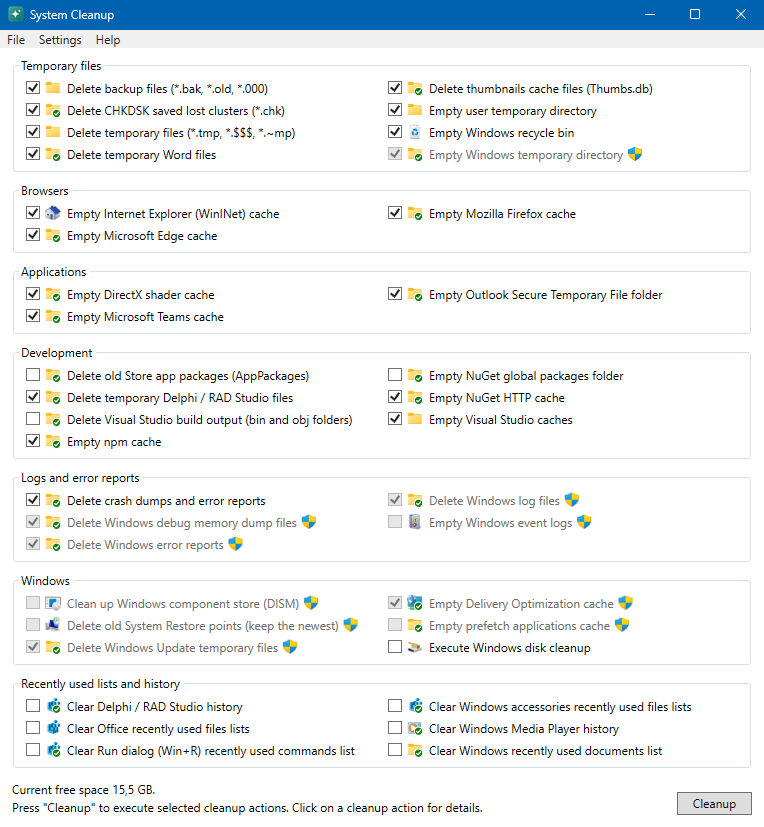
- The actions are in a group per category: Temporary files, Browsers, Applications, Development, Logs and error reports, Windows and Recently used lists and history. Within a group, the actions are sorted by name in two columns. When two or more categories have only one or two actions, these are together in a group Other, at the end.
- An action only appears when it applies to this computer, for example "Empty Google Chrome cache" only when Chrome is installed. It also appears when there is nothing to clean up.
- Hold the mouse on an action to see the number of files found and the file protection used, or an explanation of the action.
- At the bottom: the status (while reading, the progress and the current folder; afterwards, the free disk space) and the Cleanup button.
The window can be resized. When there are more actions than fit on the screen, a scroll bar appears.
Icons and check boxes
Each action has a check box, an icon and a name. The icons are the standard icons of Windows:
- a folder: something was found to clean up;
- a folder with a green check mark: nothing found, already clean;
- the icon of the Registry Editor: a cleanup in the registry;
- other icons for the special actions, for example the recycle bin (full, or empty with a check mark), System Restore, Event Viewer or Windows Disk Cleanup. These also get a green check mark when System Cleanup can tell in advance that there is nothing to clean up.
A checked action is cleaned up when you choose Cleanup; an unchecked action is skipped. Help > Legend shows this explanation in System Cleanup.
2. Cleaning up
Reading the disks
System Cleanup reads the disks at startup. The status at the bottom shows "Reading disk information..." with a percentage, the current folder and a progress bar (not at the very first start: the progress bar uses the number of folders of the previous scan). File > Stop reading stops reading; File > Reread reads the disks again, for example after you closed a browser. If the window is minimized, a beep sounds when reading is ready.
Which drives are read and which folders are skipped is set in Settings.
Choosing what to clean up
Check or uncheck the actions. By default, the actions that only remove temporary files or caches are checked; actions that remove something you may want to keep (recently used lists, event logs, NuGet packages) or that are meant to go back or restore (the previous Windows installation, restore points) are unchecked. System Cleanup remembers your choice.
Right-click in a group for:
- Select all items in <group>, Deselect all items in <group> and Default selection for <group>: only the actions in that group;
- Select all items, Deselect all items and Default selection: all actions on the screen.
File > Reset default selection sets all check boxes back to the default, after a question. It also forgets the choice of actions that are not on the screen now (for example of a program that is not installed at the moment).
The details of an action
Click the name of an action (not while reading) to open its details:
- for an action that deletes files: the list of files found, the number of files and the file protection used (for example "File protection: Windows session (smart)");
- for a special action: an explanation of what it does.
Cleanup in this window executes only this action; Close (or Esc) closes it. Cleanup is disabled when there is nothing to do, when the action needs administrator rights that System Cleanup does not have, or when the action does not apply to this computer. If the action fails, the error is shown in this window.

Cleanup
Cleanup (the button, or File > Cleanup) executes all checked actions. The window is disabled while cleaning up. The fastest actions go first: the recently used lists, then the files and the quick special actions (recycle bin, Internet Explorer cache, event logs), then the actions that use another program (Outlook, Delivery Optimization, restore points, Windows.old), Windows Disk Cleanup second to last and the component store (DISM) last. Then System Cleanup removes empty temporary folders and shows Free space by cleanup and Total free space.
If an action fails (for example a program that does not start), the other actions continue and a message with the error follows after the cleanup.
3. The cleanup actions
Below are all actions, per group. Default: checked (on) or unchecked (off) by default. Admin: needs administrator rights (see Administrator rights). Between brackets: what must be on the computer for the action to appear. You only see the actions that apply to your computer.
Actions that delete files only delete files that have not been used recently, depending on the file protection (see Settings). With Smart (the default), temporary files are protected during the current Windows session, and backup and cache files for a week.
Temporary files
| Action | Default | Admin | What it does |
|---|---|---|---|
| Delete backup files (*.bak, *.old, *.000) | On | Backup files on all disks. | |
| Delete CHKDSK saved lost clusters (*.chk) | On | The files CHKDSK saves in the root of a disk (found.000), and the empty found folders. | |
| Delete temporary files (*.tmp, *.$$$, *.~mp) | On | Temporary files on all disks. | |
| Delete temporary Word files | On | The ~$ files Word leaves behind. | |
| Delete thumbnails cache files (Thumbs.db) | On | The thumbnail files in folders. | |
| Empty user temporary directory | On | Your temporary folder (%TEMP%). | |
| Empty Windows temporary directory | On | Yes | The temporary folder of Windows. |
| Empty Windows recycle bin | On | Empties the recycle bin; the tooltip shows the number of files and the size. |
Browsers
| Action | Default | Admin | What it does |
|---|---|---|---|
| Empty Microsoft Edge cache, Empty Google Chrome cache, Empty Mozilla Firefox cache | On | Only the cache of the browser (when installed), never the cookies, passwords, history or the data of websites. Close the browser first: files in use are skipped. | |
| Empty Internet Explorer (WinINet) cache | On | The cache of the Internet Explorer mode of Edge and of programs that use it. | |
| Empty Java runtime cache | On | The cache of Java (when installed). |
Applications
| Action | Default | Admin | What it does |
|---|---|---|---|
| Empty Microsoft Teams cache | On | The cache folder of Teams (new or classic), always as a whole, so Teams never starts with half a cache. | |
| Empty Visual Studio Code cache, Empty Slack cache, Empty Discord cache | On | Only the cache folders, never the settings or conversations. | |
| Empty DirectX shader cache | On | The shader cache of Windows (rebuilt by games and programs when needed). | |
| Empty Outlook Secure Temporary File folder | On | The attachments Outlook saved temporarily (when Outlook is installed). |
The caches of Teams, Visual Studio Code, Slack, Discord and Visual Studio are not emptied while the program is running: the action is skipped without an error message. The tooltip and the details of the action say that the program must be closed first.
Development
| Action | Default | Admin | What it does |
|---|---|---|---|
| Delete old Store app packages (AppPackages) | On | The packages Visual Studio creates with Publish > Create App Packages (.msixupload, .appxupload and the _Test folders) in a folder AppPackages next to a project. | |
| Delete temporary Delphi / RAD Studio files | On | Files like *.dproj.local and *.identcache (when Delphi is installed). | |
| Delete Visual Studio build output (bin and obj folders) | Off | The folders bin and obj next to a .NET project, per project together or not at all. A project needs a build afterwards. | |
| Empty Visual Studio caches | On | The file index in .vs and the component cache of Visual Studio. | |
| Empty npm cache, Empty NuGet HTTP cache, Empty pip cache (Python), Empty Yarn cache | On | The download caches of these package managers. | |
| Empty NuGet global packages folder | Off | The NuGet packages in .nuget\packages, each package as a whole. A project needs a restore afterwards. |
Logs and error reports
| Action | Default | Admin | What it does |
|---|---|---|---|
| Delete crash dumps and error reports | On | The crash dumps and error reports of your own account. | |
| Delete Oracle client log files (sqlnet.log) | On | The log files of the Oracle client (when installed). | |
| Delete Windows debug memory dump files | On | Yes | The memory dumps Windows saves after a crash. |
| Delete Windows error reports | On | Yes | The error reports of Windows for all users. |
| Delete Windows log files | On | Yes | Old log files of Windows (not the current ones). |
| Empty Windows event logs | Off | Yes | Empties the event logs Application, Security and System. |
Windows
| Action | Default | Admin | What it does |
|---|---|---|---|
| Delete Windows Update temporary files | On | Yes | The downloaded updates; an update in use is skipped. |
| Empty Delivery Optimization cache | On | Yes | The update files Windows shares with other computers. |
| Empty prefetch applications cache | Off | Yes | The prefetch files of Windows; programs start slower the first time afterwards. |
| Delete temporary Windows installation files | Off | Yes | The leftovers of a Windows upgrade ($Windows.~BT, $Windows.~WS). Not shown while Windows.old exists; skipped when Windows is waiting for a restart or an upgrade is running. |
| Delete previous Windows installation (Windows.old) | Off | Yes | Removes the previous Windows version, like Windows does itself after the period to go back. Afterwards you can no longer go back to the previous version. |
| Delete old System Restore points (keep the newest) | Off | Yes | All restore points except the newest. |
| Clean up Windows component store (DISM) | Off | Yes | Removes old versions of Windows components. This can take a long time. Skipped when Windows is waiting for a restart to finish updates. |
| Execute Windows disk cleanup | Off | Starts Windows Disk Cleanup with the options set in Settings. System Cleanup does almost everything Disk Cleanup does itself; this is for the few things only Disk Cleanup can do safely (old driver packages, language resource files, Microsoft Defender files). |
Recently used lists and history
These actions remove lists, not files, so they free hardly any space. They are all off by default.
| Action | Default | Admin | What it does |
|---|---|---|---|
| Clear Windows recently used documents list | Off | The shortcuts in Recent items; jump lists with pinned items stay. | |
| Clear Run dialog (Win+R) recently used commands list | Off | The commands you typed in Run. | |
| Clear Office recently used files lists | Off | The recent files and folders of Word, Excel, PowerPoint, Publisher, Access and Visio, also the pinned files. | |
| Clear Windows accessories recently used files lists | Off | The recent files of the classic Paint and WordPad (when the list exists). | |
| Clear Windows Media Player history | Off | The history of Windows Media Player. | |
| Clear WinRar history, Clear WinZip history | Off | The history of these programs (when installed). | |
| Clear Delphi / RAD Studio history | Off | The history lists of each Delphi version installed. | |
| Empty Outlook Deleted Items folder | Off | Only for Outlook 2000 to 2003. |
Built-in protection
- System Cleanup never reads the system folders of Windows that no action cleans up (for example
WinSxS, which only DISM can clean up),System Volume Information, Program Files and OneDrive. That also saves a lot of time. - An action that searches the whole disk (for example
*.bakor*.tmp) never touches files in OneDrive, Program Files or ProgramData: there these files belong to a program, or deleting them in OneDrive also deletes them in the cloud. - Files in the recycle bin only count for "Empty Windows recycle bin".
- Files in use are skipped. A shortcut to another folder (junction or symbolic link) is not followed.
- Packages and caches that belong together (NuGet packages, Yarn, Teams, Visual Studio, bin and obj) are deleted as a whole or not at all, so a program never finds half a package or half a cache.
4. Administrator rights
System Cleanup works with and without administrator rights; it does not ask for them at startup. Without administrator rights, the actions that need them are disabled: a grey check box, grey text and the Windows shield after the name. The tooltip says "This action requires administrator rights. Run System Cleanup as administrator to use it."
To use these actions, choose File > Restart as administrator (only shown without administrator rights). Windows asks for permission; your check boxes are kept. You can also start System Cleanup with Run as administrator in Windows. Your choice for a disabled action is kept, but Cleanup skips it as long as there are no administrator rights.
5. Settings
The menu Settings opens the window Settings. After Ok with changed settings, System Cleanup reads the disks again.

- Recent file access protection: which files are protected because they were used recently.
- Disabled (not recommended): no protection, everything that matches may be deleted. Close all programs first.
- Windows session: only files that have not been used since Windows was started.
- Last week: only files that have not been used for a week.
- Smart (default): "Last week" for backup and cache files, "Windows session" for temporary files.
- Scan mode: Local drives only (default) or Include network drives.
- Exclude directories: folders (with their subfolders) that are not read, so nothing in them is cleaned up. Add a folder with Add..., remove it with Remove. Excluding large folders also makes reading faster.
- Windows disk cleanup: Setup Windows disk cleanup... sets what Windows Disk Cleanup does with the action "Execute Windows disk cleanup".
- Check for updates: how often System Cleanup checks at startup whether there is a new version (Daily, Weekly (default), Monthly or Never). Check now checks right away.
6. Startup parameters
You can start System Cleanup with a parameter, for example in a shortcut or a scheduled task in Task Scheduler.
Upper and lower case do not matter, and the / may also be a - or left out (/Auto, -auto and auto are the same).
| Parameter | What it does |
|---|---|
SystemCleanup.exe /Auto | Automatic mode: read the disks, clean up all checked actions and close. The window is disabled and the title is "System Cleanup (Automatic mode)". Choose the actions first in the normal window; they are remembered. There is no update check in automatic mode. |
SystemCleanup.exe /ShowAllCleanupActions | For testing: also show the actions that do not apply to this computer. These are disabled and never executed, also not with /Auto. |
/Auto must also run as administrator (in Task Scheduler: Run with highest privileges).7. Keyboard shortcuts
| Key | What it does |
|---|---|
| Alt+F, Alt+S, Alt+H | The menus File, Settings and Help |
| Alt+C | Cleanup |
| Esc (details of an action) | Close |
| Enter / Esc (Settings) | Ok / Cancel |
The other menu items and buttons have an underlined letter: press Alt and that letter.
8. If something does not work
An action is grey
The action needs administrator rights: see Administrator rights.
An action does not clean up everything
- Files that were used recently are protected (see Settings). The protection depends on the last access time of a file, which Windows does not always update, and on how long Windows has been running: with Fast Startup, a Windows session can last for days.
- Files in use are skipped. Close the browser or program and choose File > Reread.
An action I expected is missing
An action only appears when it applies to this computer, for example when the program is installed. Some actions are for older software (Outlook 2000-2003, WinZip, older Delphi versions).
The settings
System Cleanup saves the settings (the check boxes and the settings in Settings) in %LOCALAPPDATA%\Franck\SystemCleanup\SystemCleanup.json when it closes.
If that file is missing or damaged, System Cleanup starts with the default settings.
A second System Cleanup does not start
Only one System Cleanup can run at the same time; a second start closes right away. Look for the open window on the taskbar.
A new version
System Cleanup checks at startup whether there is a new version (how often is set in Settings). To check yourself, choose Help > Check for updates. You can download the new version from the System Cleanup page. For questions or problems you can contact the author.