 Video Downloader manual
Video Downloader downloads a video, or only the audio, from YouTube, Vimeo and many other websites. You can download Video Downloader, and read how to install it, on the Video Downloader page.
1. Introduction
How it works
Video Downloader is an easy window around yt-dlp , a well-known command-line tool that downloads videos from many websites. Video Downloader downloads yt-dlp and the other tools it needs by itself and keeps them up to date (see The required tools), so you do not have to install anything else.
The main window
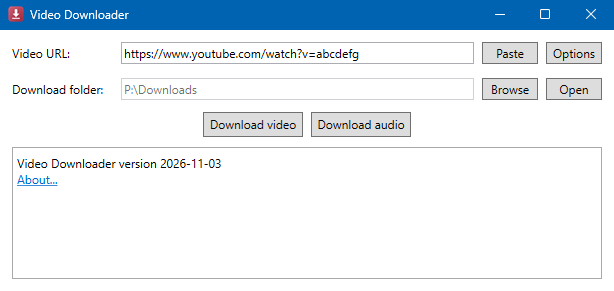
From top to bottom:
- Video URL: the address of the video (or playlist). Paste puts the address from the clipboard in this field.
- Options: shows or hides the options (see Options).
- Download folder: where the files are saved. Browse chooses another folder, Open opens the folder in Windows Explorer.
- Download video and Download audio: start the download.
- The log, with a progress bar at the top: what Video Downloader is doing, and at the end a link Open folder. The link About... shows the version and a link to the web page of Video Downloader.
When Video Downloader starts, it first checks the required tools ("Checking dependencies..."). The buttons are available as soon as that is done.
2. Downloading
Download a video
- Copy the address of the video in your browser (Ctrl+C), for example from the address bar or with "Copy link" or "Share" on the website.
- Start Video Downloader. If the clipboard contains a web address, it is already in Video URL. Otherwise, click Paste or type the address.
- Click Download video. The log shows the progress.
- When the download is ready, click Open folder in the log to see the file.
The file gets the title of the video as its name, for example Amazing grace.mp4. Spaces in the address are removed, so an address that was split over two lines still works.
During the download the buttons are disabled; they are available again when the download is ready.
Download only the audio
Click Download audio instead of Download video. Video Downloader saves only the sound, as M4A or MP3 (see Audio output). This is useful for music or a podcast.
Download a playlist
Use the address of a playlist (for example a YouTube address with list= in it) to download all videos of the playlist into the download folder.
A video in the playlist that cannot be downloaded is skipped; the others are still downloaded.
3. Options
Click Options to show the options below the download folder; click it again to hide them.

Video output
| Option | What you get |
|---|---|
| Best available quality | The best quality the website offers, often in WebM or MKV. Smaller files, but playing them uses more of the computer. |
| Remux best available quality into MP4 (default) | The same quality and file size, but in an MP4 file, which almost every player can open. |
| H.264 and remux into MP4 | An MP4 file with the H.264 video format, which works on almost every device and program (for example older TVs and presentation software). The file is larger. |
Audio output
- M4A - Advanced Audio Coding (AAC) (default): better quality and a smaller file. If a site has no M4A audio, the best audio is converted to M4A.
- MP3 - MPEG-2 Audio Layer III: works with every player, but the file is larger.
Subtitles
Choose English, Dutch or Spanish to save the subtitles with a video, as a separate SRT file next to the video. If the video has no subtitles in that language, Video Downloader uses the automatically generated subtitles of the website (if there are any). The default is Do not save subtitles file.
To see the subtitles, use VLC or another player that supports a separate subtitles file. Subtitles are not saved with Download audio.
Advanced options
In Advanced options you can add any option of yt-dlp . They are added to the options that Video Downloader already uses. The text must start with -; otherwise you get the message "Invalid advanced options.". Some examples:
| Advanced options | What it does |
|---|---|
--video-password secret | A video that is protected with a password (for example on Vimeo). |
--playlist-items 1-3 | Only the first three videos of a playlist. |
--no-playlist | Only the video itself, when the address also contains a playlist. |
--download-sections "*1:00-2:30" | Only a part of the video (from 1:00 to 2:30). |
Is a video protected with a password, then Video Downloader shows the options and fills in --video-password PASSWORD. Replace PASSWORD with the password and click Download video again.
The advanced options are not remembered: they are empty again at the next start (unless you use startup parameters).
Which options are remembered
When you close Video Downloader, it remembers Video output, Audio output and Subtitles, but only if they differ from the default. In that case the options are already open at the next start, so you see that they are different. The video URL and the advanced options (for example a password) are never remembered.
4. The download folder
By default the files are saved in the Downloads folder of your user profile. If that folder does not exist, Video Downloader uses C:\Downloads, and otherwise your Videos folder.
- Browse chooses another folder. Video Downloader remembers that folder when you close it. If the folder no longer exists at the next start, the default folder comes back.
- Open opens the folder in Windows Explorer. If it does not exist yet, it is created when the download starts.
- A file that already exists in the folder is not downloaded again.
5. The required tools
Video Downloader uses a few free tools. It downloads them by itself the first time (the log shows "Please wait while downloading dependencies...") and puts them in the temporary folder of Windows (%TEMP%). So the first start takes a little longer and needs an internet connection.
| Tool | What for | Kept up to date |
|---|---|---|
| yt-dlp | Downloads the video (required) | Updates itself at every download |
| FFmpeg and FFprobe | Combines video and sound, converts to MP4 or MP3 | Downloaded again after 60 days |
| Deno | Needed by yt-dlp for some websites (for example YouTube) | Downloaded again when there is a new version |
| PhantomJS | Needed for a few websites only | - |
If a tool is missing or damaged, Video Downloader downloads it again. Without yt-dlp nothing can be downloaded; without FFmpeg or Deno some videos cannot be downloaded or have a lower quality (the log says so).
6. Startup parameters
Everything after VideoDownloader.exe on the command line (or in the target of a shortcut) is put in Advanced options, so you can always start Video Downloader with the same yt-dlp options. For example:
VideoDownloader.exe --no-playlist --embed-thumbnail
Open Options to see them. Like everything you type in Advanced options, the parameters must start with -.
The parameters are passed on exactly as you type them, with the quotes, so a value with spaces stays one value, for example --video-password "my secret".
7. If something does not work
Messages
| Message | What to do |
|---|---|
| Please enter a valid video URL. | The video URL must start with http:// or https://. |
| Clipboard does not contain video URL. | Copy the address of the video first, then click Paste. |
| Invalid advanced options. | Check the advanced options (they must start with - and be valid options of yt-dlp), or make the field empty. |
| This video is protected by a password. / Wrong password. | Fill in the right password after --video-password in the advanced options (see Advanced options). |
| Invalid video URL or video unavailable. | Check the address. The video may be removed, private or not available in your country. |
| Invalid video URL or no internet connection. / Error downloading. Check your internet connection. | Check the internet connection and the address, and try again. |
| Error downloading yt-dlp. Please check your internet connection and restart this tool. | The required tool could not be downloaded. Check the internet connection and start Video Downloader again. |
| Missing components will be downloaded first. / Something went wrong. Dependency component will be downloaded again. | Wait until the tools are downloaded and click Download video again. |
A video cannot be downloaded
Websites change often, and yt-dlp then needs an update. yt-dlp updates itself at every download, so trying again later often helps. A video with DRM (for example from a paid streaming service) cannot be downloaded.
A video does not play
Choose H.264 and remux into MP4 at Video output and download the video again, or use VLC .
An error message
If something unexpected goes wrong, Video Downloader shows a message, opens the folder with the error log (next to VideoDownloader.exe) and closes. Please send the error log with a short description of what you did; see contact.
A new version
Once a week Video Downloader checks at startup whether there is a new version, and asks whether you want to open the web page to download it. The About... window also shows when an update is available. You can download the new version from the Video Downloader page.
Settings
Video Downloader keeps its settings in %LOCALAPPDATA%\Franck\VideoDownloader\VideoDownloader.json. Delete that file (while Video Downloader is closed) to go back to all defaults.
Only one Video Downloader can run at a time.