 System CleanupKeep your computer clean, fast and secure
Summary
Find and remove temporary, cache, history, and backup files on all your local and network drives. System Cleanup protects recently used files. Drives and folders can be manually added to an exclusion list to protect files and improve disk read speed. System Cleanup has been renewed for Windows 10 and 11, with new cleanup actions for web browser caches, crash dumps, developer tools (Visual Studio, Store app packages, NuGet, npm, pip, Yarn) and apps such as Microsoft Teams, Visual Studio Code, Slack and Discord.- More than 50 cleanup actions, in groups: temporary files, browsers, applications, development, logs and error reports, Windows and recently used lists and history. Only the actions that apply to your computer are shown.
- An icon per action shows whether there is something to clean up, and the details show the files found.
- Built-in protection: recently used files, OneDrive, Program Files and ProgramData are left alone, and the cache of a running program is skipped.
- Some actions need administrator rights (File > Restart as administrator).
- The startup parameter /Auto cleans up automatically and closes.
Installation
If necessary, you will be prompted to install the required .NET Desktop Runtime when you launch the app. When you launch a newly released version, Windows may display a warning. If you see the message "Microsoft Defender SmartScreen prevented an unrecognized app from starting." you can click "More info" and then "Run anyway". Alternatively, open the properties of the .exe file and select the "Unblock" checkbox. Read more...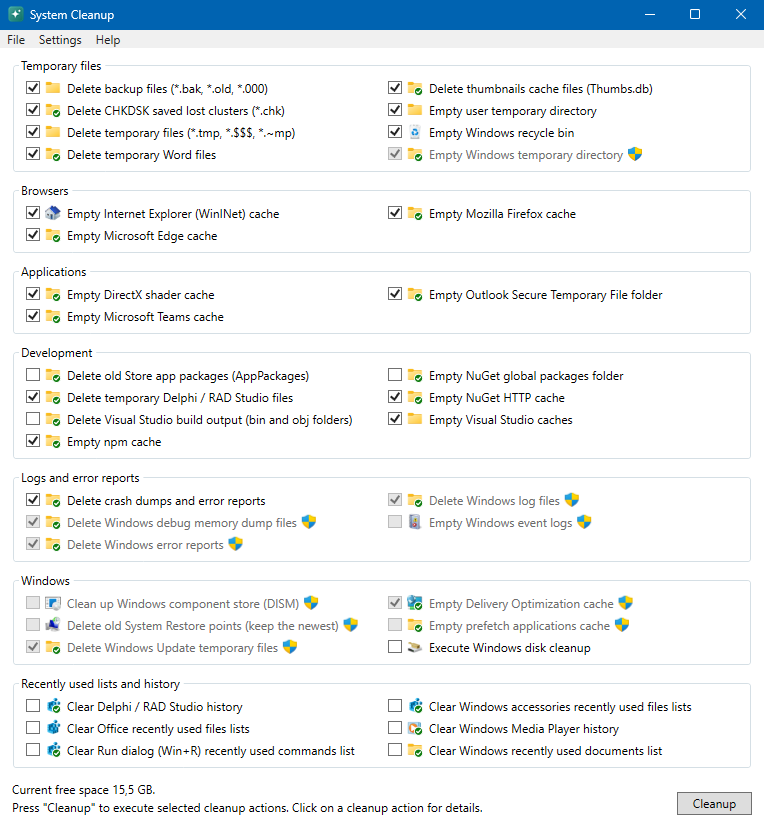

Reviewed by





Product:
System Cleanup
Version:
2026-11-04
Package:
531 KB, zip-file
Platform:
Windows 10 and 11
Release notes:
2026-11-03
Online manual (Help > Manual)
2026-10-29
Cleanup runs the fastest actions first
Windows Disk Cleanup opens on the screen of System Cleanup
Windows Disk Cleanup opens on the screen of System Cleanup
2026-10-26
New cleanup action: delete old Store app packages
2026-10-20
Cleanup actions grouped by category, resizable main window and Restart as administrator
New cleanup action: delete temporary Windows installation files
Automatic update check (daily, weekly, monthly or never)
New cleanup action: delete temporary Windows installation files
Automatic update check (daily, weekly, monthly or never)
2026-10-12
Renewed for Windows 10 and 11 (.NET 10)
New cleanup actions (e.g. Edge, Chrome and Firefox cache, crash dumps, Teams, Visual Studio, NuGet and npm caches, DISM)
Outdated cleanup actions removed, icons per cleanup action and support for administrator rights
New cleanup actions (e.g. Edge, Chrome and Firefox cache, crash dumps, Teams, Visual Studio, NuGet and npm caches, DISM)
Outdated cleanup actions removed, icons per cleanup action and support for administrator rights
2020-11-04
Version 1.8: Update contact information
2008-01-07
Version 1.7: Support for network drives
2006-06-26
Version 1.6: Empty Outlook Secure
Temporary File folder
Use Application Data location for settings file
Improved Java cache and Windows uninstall cleanup
Use Application Data location for settings file
Improved Java cache and Windows uninstall cleanup
2005-07-27
Windows XP themes support
Cleanup Borland Developer Studio history
Cleanup temporary Borland Developer Studio files
Cleanup Borland Developer Studio history
Cleanup temporary Borland Developer Studio files
2005-03-01
Version 1.5: Mozilla Firefox cleanup actions
2004-11-05
Version 1.4: Exclude directories option
Startup switch "-auto" for automatic mode
New cleanup actions (e.g. Outlook)
Application detection (only relevant items are visible)
Some small other changes
Startup switch "-auto" for automatic mode
New cleanup actions (e.g. Outlook)
Application detection (only relevant items are visible)
Some small other changes
2004-08-01
Some small GUI changes
2004-06-21
Version 1.3: Internet Explorer history and MS Office history cleanup actions added
2004-05-18
Version 1.2: Scan mode setting
Cleanup Java cache
Legend added
Cleanup Java cache
Legend added
2004-05-06
Version 1.1: Problem with MS Office solved
2004-05-02
Version 1.0: First public release
2004-04-22
Version 0.9: New GUI and action info windows
2004-04-05
Version 0.7: New setup window and store settings
2004-03-25
Version 0.6: Some small fixes
2004-03-21
Version 0.4: First beta release